
Keyboard Shortcuts & Workflow
Every menu command in VidNeat for macOS, plus the five ways to hand a link to the app.
Menu commands
| Shortcut | Action |
|---|---|
⌘N |
New Download |
⇧⌘V |
Paste link from clipboard |
⌘1 |
New Download pane |
⌘2 |
Queue pane |
⌘3 |
Channels pane |
⌘4 |
Settings |
⇧⌘K |
Filter the queue |
⌘R |
Check for app updates |
⇧⌘R |
Re-check the status feed |
⌘, |
Settings |
Five ways to hand VidNeat a link
Every route below ends up at the same download engine. The only difference is who carries the link across — you, Finder, your browser, or a script. Each one shows the literal thing to paste, type or click on the left.
Paste into New Download
Copy a link anywhere in macOS, put it in the Video URL field, then press ⇧⌘V. VidNeat inspects the source and fills the quality menu with the tiers that actually exist, rather than a generic ladder.
With Auto-detect video links from clipboard switched on, the paste itself is all you have to do — while the app is frontmost. It reads your clipboard, which is why it ships off.
Drop a link file
Drag a link file onto the window or the menu bar popover. A .webloc or .url saved from any browser works, and so does a .txt holding one or more http(s) lines — those queue one after another instead of overwriting each other.
VidNeat reads links, not files. Dropping a local .mp4 or .mov does nothing at all.
Turn on Smart Mode
With Smart Mode on, a pasted or dropped link starts downloading the moment it lands, at your default quality. No inspection step, no quality menu, no confirmation — the queue fills itself.
It defaults to off because it is the one setting that changes what a paste does rather than how it looks. One click to turn on, one to put it back.
Send it from the page
The companion extension adds Download with VidNeat to the browser context menu, so a video never has to leave the page it is on. Its popup picks the quality and turns on subtitles and SponsorBlock before the link is handed over. Whether it then queues at once is up to your Smart Mode setting.
Prefer no extension? Copy the bookmarklet from Settings and paste it into a browser bookmark — the same job, nothing installed, no permissions requested.
- URL schemeSend a trim range with the URL
vidneat://download?url=https://example.com/watch?v=ID&quality=1080pHand it a vidneat:// URL
Anything that can open a URL can drive VidNeat: a Shortcut, a shell command, a script, a bookmark bar, Alfred, Raycast. The link opens in New Download, inspected and ready, or goes straight to the queue if Smart Mode is on.
Accepted parameters: url, quality, format, sponsorblock, subtitles, trimin, trimout, filename. Only url is required, and no parameter can start a download by itself.
The menu bar app
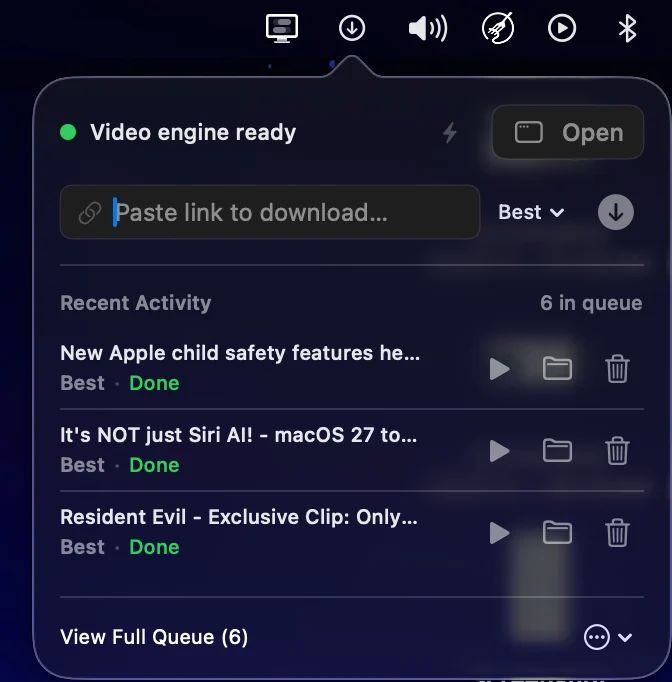
VidNeat runs a status item next to the clock, alongside the main window. You can drive it entirely from the popover, and never open the window at all.
Inside the popover
- Health pill
A local read on the download engine, plus the status feed if this build ships with one.
- Paste field
The same Video URL field as the main window, with the quality menu beside it.
- Recent activity
Your three most recent items, each with play, reveal and delete controls.
The popover and the main window are one view model, not two — which is why a download you start in either place shows up in both.
Reading the pill
It reflects your local failure rate over the last 20 downloads.
- Green · Engine ready
Nothing in the window failed in the engine. Normal operation — you do not need to look at it.
- Amber · Degraded
Failures are turning up inside the window. Some downloads will land, some will not.
- Red · Failing
The engine is failing most of what it is handed. Check the status feed before you suspect the link.
The status feed can pull the pill off green even when your own downloads are clean. That is the engine reporting on itself, not a verdict on your links.
Defaults worth knowing
| Setting | Default |
|---|---|
| Download folder | ~/Downloads |
| Quality | 1080p |
| Audio format | MP3 |
| Simultaneous downloads | 5 |
| Subtitles | Off |
| SponsorBlock | Off |
| Smart Mode | Off |
| Clipboard link detection | Off |
| Channel auto-queue | Off, limit 5 |
| Subtitle language | en |
Clipboard detection and Smart Mode are both off by default on purpose: one reads your clipboard while the app is frontmost, the other downloads the moment you paste. Both are one click away in Settings when you want them.

Privacy boundary
No analytics, no crash reporting, no accounts, and nothing executable fetched at runtime. What follows is the whole outbound surface, split by whether you had to ask for it.
Leaves your Mac
- 01An optional status feed we host, if the build is configured with one
- 02A read-only check for a newer version of the bundled download engine
- 03The signed app-update feed, which is how new versions and extraction fixes arrive
- 04Licence activation, then a check about once a day, with our payment provider: your licence key and your Mac's computer name, nothing else
- 05Video thumbnails, only from the video platform's own image servers (YouTube, Vimeo and a few others), cached so each is fetched once
- 06The downloads you start
Only if you switch it on
SponsorBlock. Segment timecodes come from the public SponsorBlock API, for the video you asked about and nothing else. No request is made until you switch the feature on.
Never leaves the Mac
- Browser session cookies
Read by the app on your own Mac, through Keychain Services, to authenticate streams you request. Never uploaded, never written down.
- Queue and settings
Plain JSON in the folder below. There is no remote profile to sync to and no account to log into.
Nothing executable is ever fetched at runtime. The download and media components ship inside the signed app, and extraction fixes arrive through ordinary app updates.
Read the full privacy policyRelated
- Stream-copy trimming runbook — precision and keyframe boundaries
- Browser integration — extension, bookmarklet, URL scheme
- Channels & playlists — hourly monitoring and curation