URL Scheme & Automation
How to drive VidNeat headlessly using the vidneat:// URL scheme, Apple Shortcuts, Raycast, and shell scripts on macOS.
Summary
| Attribute | Specification |
|---|---|
| Protocol | Custom URL scheme vidneat:// |
| Supported Actions | download and queue, which behave identically |
| What a link does | Opens New Download with the link inspected, or queues it if Smart Mode is on in Settings |
| macOS Integration | Apple Shortcuts, Raycast, Alfred, Terminal CLI, Browser Bookmarks |
| Automation Overhead | Zero runtime daemons; launches or wakes frontmost app |
VidNeat registers the custom URL protocol handler vidneat:// with macOS LaunchServices.
Any script, shortcut, or third-party launcher that can open a URI can hand VidNeat a link
without manual clipboard pasting.
1. URL Scheme Syntax
A VidNeat action URL follows standard RFC 3986 query parameter conventions:
vidneat://ACTION?url=SOURCE_URL&PARAM1=VALUE1&PARAM2=VALUE2Supported Actions
download and queue are both accepted and do the same thing. What happens next depends only on
Settings > Smart Mode, not on anything in the link:
- Smart Mode off (the default): VidNeat comes to the front, enters the link in New Download, inspects it, and applies the link’s quality, trim, subtitle and SponsorBlock values. Nothing downloads until you press Download.
- Smart Mode on: the link goes straight into the queue, using the link’s values or your defaults.
A link can’t start a download on its own, because any web page can open a vidneat:// link. The smart
parameter is still accepted for older links, but it has no effect. Without an active licence or trial, the
link waits in the New Download field and nothing is fetched.

2. Accepted Query Parameters
| Parameter | Type | Description |
|---|---|---|
url |
String (Required) | Fully-qualified http:// or https:// web link. URL-encoding is recommended. |
quality |
String | best, 4k (or 2160/2160p), 1080p, 720p, or audio. Without it, your default quality in Settings applies. |
format |
String | When quality is audio: mp3, m4a, flac, wav, opus. |
subtitles |
1 or true |
Turns subtitles on for this link. Ignored when a trim range is set. |
sponsorblock |
1 or true |
Turns SponsorBlock on for this link. |
trimin |
Seconds | Start of the range, such as 90. Timecodes like 00:01:30 aren’t read. |
trimout |
Seconds | End of the range, such as 165. |
filename |
String | Output file name, sanitised. Applied when Smart Mode queues the link directly; the New Download screen doesn’t take it. |
smart |
— | Accepted, but has no effect. Smart Mode in Settings decides. |
3. Automating with Apple Shortcuts
You can build a macOS Shortcut that sends whatever link is on the clipboard to VidNeat:
- Open the Shortcuts app on macOS.
- Create a new Shortcut titled Send to VidNeat.
- Add the action Get Clipboard.
- Add the action URL:
vidneat://download?url=[Clipboard] - Add the action Open URL.
- Assign a global keyboard shortcut (e.g.,
⌃⌥V) or add it to your Mac Menu Bar.
The link then opens in New Download, ready to confirm. To have it queue immediately instead, switch on Smart Mode in Settings.
4. Driving VidNeat from the Terminal
Because macOS provides the native open command line tool, shell scripts can hand links to VidNeat.
For unattended scripts, switch on Smart Mode first; otherwise each link waits in New Download.
# Opens at 1080p in New Download, or queues at once if Smart Mode is on
open "vidneat://download?url=https://example.com/watch?v=XYZ&quality=1080p"

# Fetch only the range from minute 01:30 to 02:45
open "vidneat://download?url=https://example.com/watch?v=XYZ&trimin=90&trimout=165"
5. Browser Extension and Bookmarklet Fallback
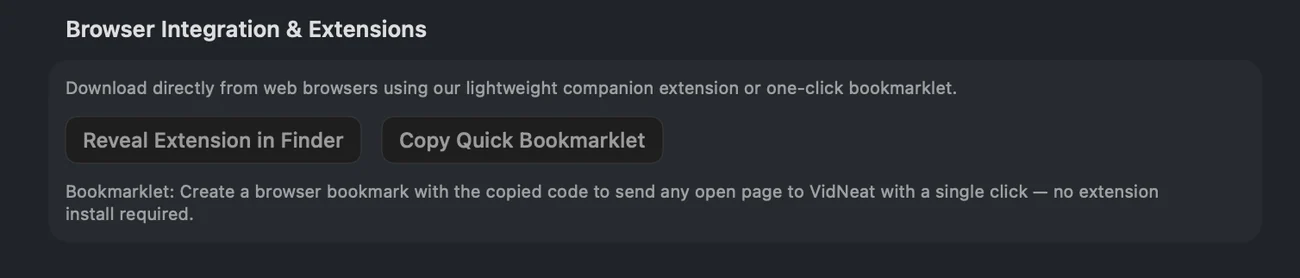
If you prefer one-click browser integration without running scripts, install the companion extension or copy the bookmarklet from Settings: