
Stream-Copy Trimming Runbook
How VidNeat selects a range, fetches it, and cuts it without re-encoding — including the keyframe boundary that comes with lossless trimming.
Summary
| Attribute | Specification |
|---|---|
| Objective | Cut a clip by copying streams, never re-encoding |
| Requires | VidNeat for macOS — macOS 14.0 or later, universal binary |
| Precision | One-second steps, adjusted to the nearest keyframe by the container |
| Output | MP4 |
| Processing | Local. Everything runs inside the signed app on your Mac |
Read this before assuming a cut lands on an exact frame. It does not, and the reason is in section 4.
1. Give VidNeat a URL
VidNeat reads links, not files. There is no local-file drop.
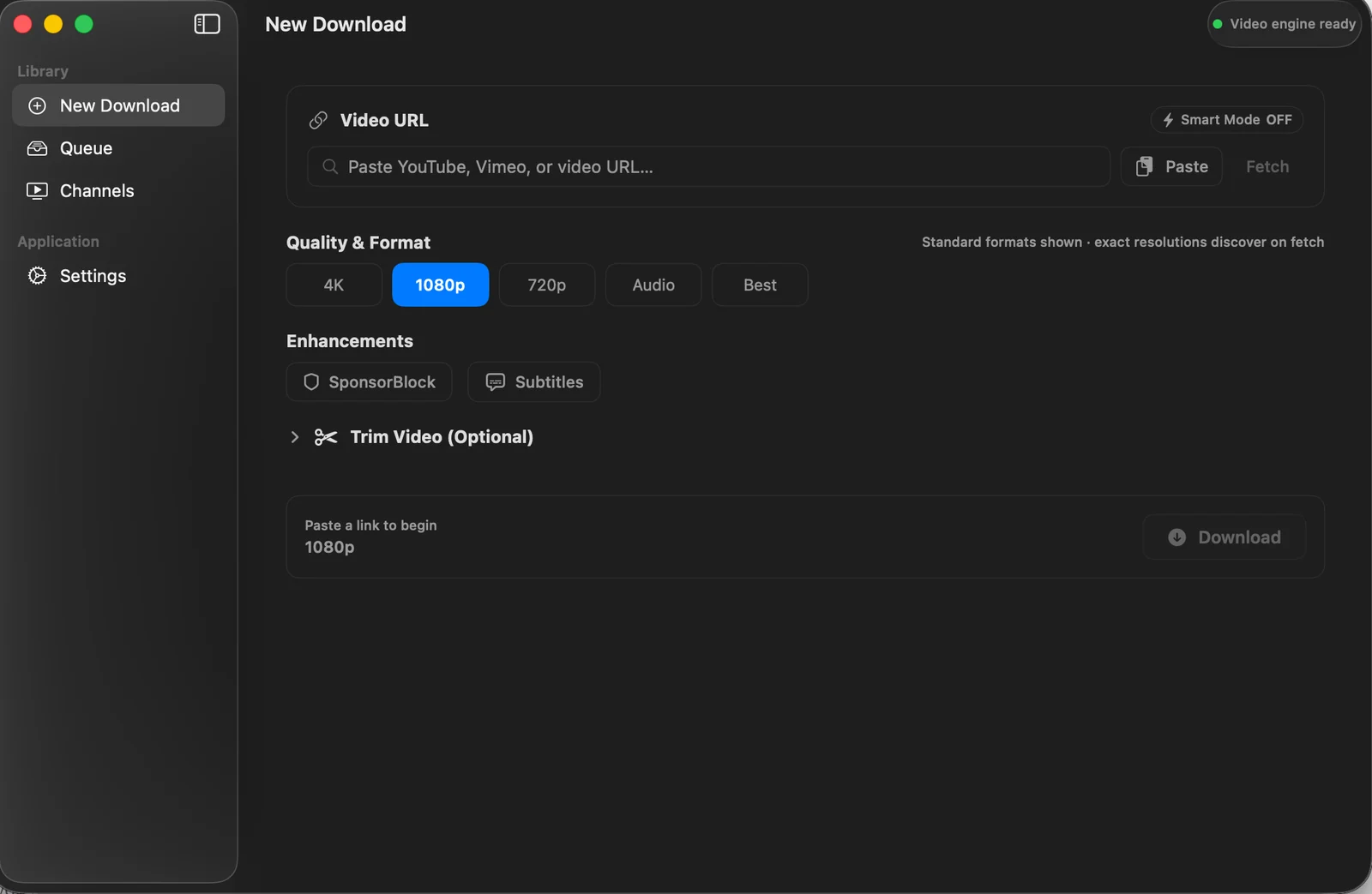
- Paste a URL into the New Download field.
- Drag in a link file:
.webloc,.url, or a.txtcontaining one or morehttp(s)://lines. Dropping a.mp4from Finder does nothing. - Paste from the clipboard with ⇧⌘V, or turn on Auto-detect video links from clipboard in Settings and paste while the app is frontmost.
Source support is broad — well beyond YouTube, covering thousands of sites. Link, channel and playlist detection covers YouTube playlists, SoundCloud sets, and generic playlist/album URLs.
2. Inspect, then choose a quality
With Smart Mode off, VidNeat probes the source and shows the exact tiers that exist, instead of a generic ladder. Before a link is inspected you get five static presets:
Best available · 4K (up to 2160p) · 1080p · 720p · Audio only
Two format families are requested, H.264 video with AAC audio, which is what Final Cut Pro, DaVinci Resolve and Premiere all read without complaint.
3. Set the range
The trim view gives you a filmstrip, two draggable In/Out handles, and −1s/+1s
steppers on each end. Readouts update live: In, Out, and a
Selected: MM:SS of MM:SS badge.
Set the range before you download and the app turns your in-point and out-point into a request for that section only, so it pulls just the bytes covering your range.
This is where the bandwidth saving comes from. It is bounded by the source: servers that do not support range requests, and streams where section mode is unavailable, still require a sequential read.
4. What “lossless” actually means
Trimming copies the existing streams rather than rebuilding them:
- Compressed packets are moved without being decoded, so the video and audio in the output are the same bytes as in the source. No generational loss, no encoder, and a cut that takes about as long as the file copy.
- The index is written to the front of the file, so the clip is seekable and streamable immediately.
- A cut cannot land mid-group. Compression means the first decodable picture sits on a keyframe, typically every 1–2 seconds. Your in-point is snapped backward to the nearest keyframe. The app surfaces this as a real boundary, not a silent shift.
So: you choose seconds, the container chooses the frame. If a cut has to land on an exact frame, that requires a re-encode — which is the opposite of what this page is about.
5. If the trim fails
A trim is a separate step from the download, and it can fail on its own — bad in-point, container quirk, disk pressure. When it does, the downloaded source is kept and the queue row offers Retry Trim, which re-cuts the local file. No re-download.
Before starting any download VidNeat also checks for 500 MB of free space and will refuse to begin rather than fill your disk.
6. Check the result
Open the finished clip and compare its duration against your In/Out readout. It may run slightly longer at the start, for the keyframe reason above.
To see the exact stream properties without installing anything, select the file in Finder, press ⌘I, and read the Video and Audio sections of the Info window.
Related
- Selective segment fetching — how the range request is made
- Subtitles & SponsorBlock — trimming the source before download
- Keyboard shortcuts & workflow — driving the app without the mouse
- FFmpeg trim without re-encoding — the same idea on the command line, with measured start times