
Trim a YouTube video on your Mac before you download it
Most downloaders hand you the whole file and leave the cutting to another app. VidNeat inverts the order: paste the link, set In and Out, and only then download, so a forty-second quote does not cost a two-hour transfer.
$14.99 once, with a 7-day free trial. Requires macOS 14.0 Sonoma or later.
How to download only part of a YouTube video
- 1
Paste the link
Copy the video’s URL and paste it into New Download, or send it from the browser extension. VidNeat reads the title, the length and every resolution the source really offers.
- 2
Open Trim Video
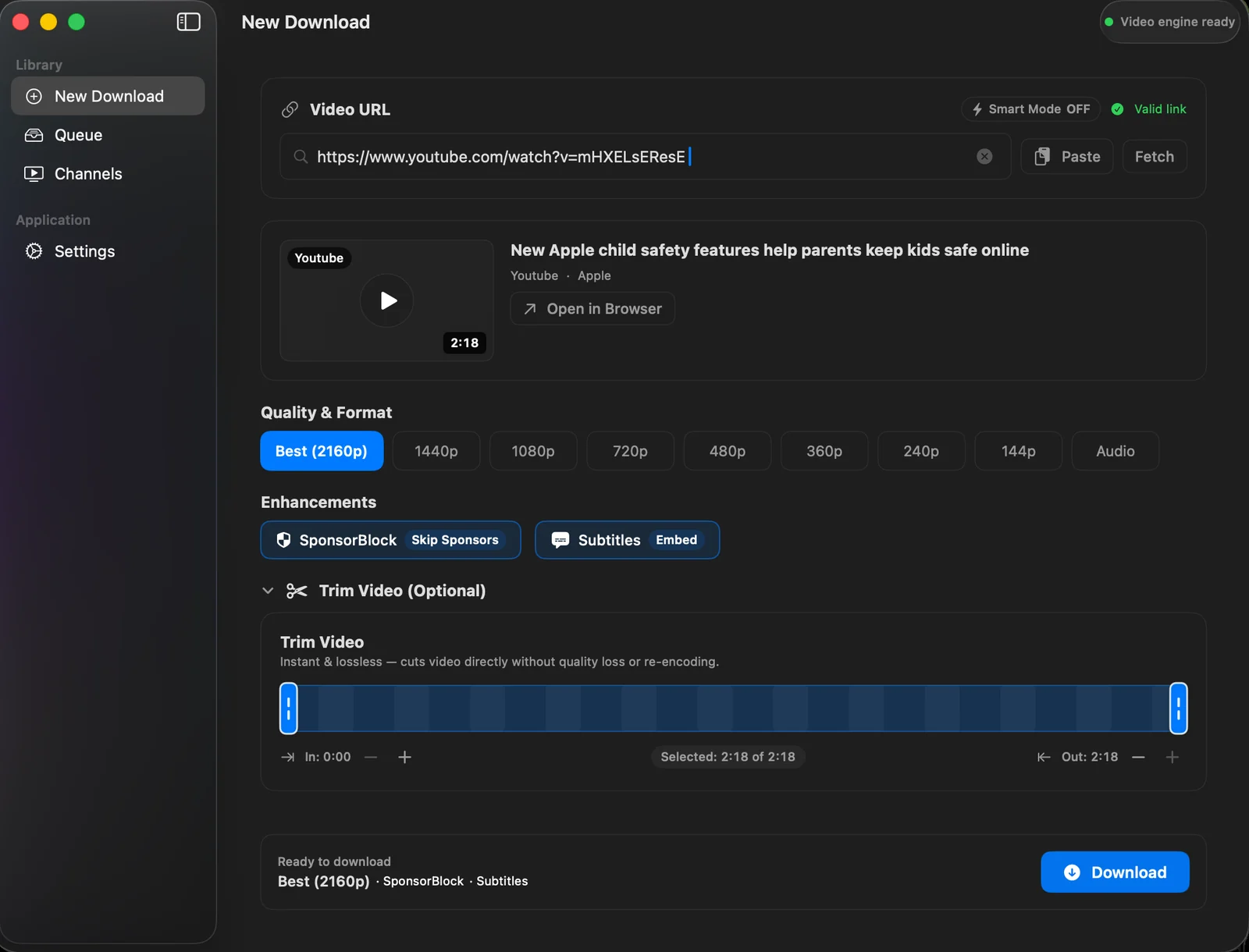
Expand Trim Video (Optional) below the quality and enhancement options. A track spans the whole video, with an In handle at the start and an Out handle at the end.
- 3
Set In and Out
Drag the handles, or use the minus and plus buttons to move each one a second at a time. The readout shows In, Out and the selected length against the full video.
- 4
Download
The bar next to the Download button restates your choices, trim range included. Press Download and the clip arrives as an MP4.
Trim before download vs download, then cut
The usual way to get a clip is to download the full video, open it in an editor, cut it and export it. Setting the range first changes what you transfer, what you store and what happens to quality.
| Trim before download | Download, then cut | |
|---|---|---|
| What you transfer | Only the marked section, where the source allows it | The whole video, every time |
| Disk space while you work | About the size of the clip, when only the section is fetched | The full file, until you delete it |
| Extra app needed | No | A video editor or trimmer |
| Quality of the cut | Original streams, no re-encode | Depends on the editor; many re-encode on export |
When a site doesn’t allow partial downloads
Fetching only a section depends on how the site serves the video. Plain MP4 files generally allow it. Some streaming formats and hosts don’t, and some refuse partial requests outright.
When that happens, VidNeat downloads the whole video and cuts it afterwards. You get the same clip, it just isn’t cheaper, and the queue tells you which way it went. How segment fetching works.
Why cuts land on keyframes
The cut copies the compressed streams into a new MP4 with no re-encode, so there is no quality loss and no wait on an encoder. The trade-off is that a cut can only start on a keyframe, so it lands on the nearest one and VidNeat reports where.
If a boundary is wrong, Retry Trim re-cuts the local file; you are not asked to download again. Our guide on why lossless cuts snap to keyframes explains the details.
Other ways to clip a YouTube video
You don’t always need an app. YouTube’s own Clip button makes a 5–60 second shareable link, and a Mac can screen-record a section and trim it in QuickTime. Both have limits: a Clip is a link rather than a file, and a screen recording is a re-encoded copy of your display. Our guide to three ways to clip YouTube videos on a Mac compares all three.
Questions
Can I download just a section of a YouTube video?
Yes. Set In and Out before you download and VidNeat asks for only that section. If the way a site serves the video doesn’t allow a partial download, VidNeat downloads the whole video and cuts it afterwards, and the queue tells you which happened.
Does it work on sites other than YouTube?
Trimming works on any link VidNeat can download. Whether only the section is fetched depends on the site: plain MP4 files generally allow it, while some streaming formats and hosts don’t.
How exact are the cut points?
Without re-encoding, a cut can only start on a keyframe, so the clip usually begins a second or two before your In point. VidNeat reports where each cut landed, and Retry Trim re-cuts the downloaded file if you want to adjust it.
Is it allowed?
Only clip videos you have the right to download: your own uploads, Creative Commons material, or content you have permission to use. YouTube’s Terms of Service only allow downloading where YouTube offers it or with permission from YouTube and the rights holder.
Related Workflows & Guides
Selective Segment Fetching
How the range is requested instead of the whole file.
Stream-Copy Trimming
Why the cut is lossless and where it lands.
VidNeat vs 4K Video Downloader+
Where a general downloader is the better fit, and where it is not.
VidNeat vs Downie 4
Downie has no built-in trimming.
How to Clip YouTube Videos on Mac
YouTube Clip, screen recording and trim-before-download compared.
How to Cut Short Clips From Long Videos on Mac
A repurposing workflow: pick moments, cut only those parts, reframe to vertical.
Get the clip you need. Not the entire video.
A native Mac downloader that fetches the range you mark and cuts by copying streams. Requires macOS 14.0 Sonoma or later.
VidNeat is a software tool. You are responsible for having the rights or permission to access, use, edit and export the media you work with.