
How to Download a Video From a Website on Mac: 4 Methods and Their Limits
Four ways to save a video from a web page on a Mac: the site's own option, Safari's Web Inspector, a downloader app, or screen recording, and their limits.
On this page
To save a video from a website on a Mac, try these in order: (1) the site’s own download option, (2) find the video file with Safari’s Web Inspector and download it directly, (3) paste the page address into a downloader app, or (4) record your screen as a last resort. Which one works depends on how the site delivers its video, and nothing here will save video that’s protected by DRM.
This guide explains each method, what you’ll see, and where it stops working. I tested the command-line parts against a local test server, and I checked every Apple and WebKit instruction against their documentation.
Before you start: only save video you have the right to keep, such as your own uploads, material under a licence that allows it, or content the owner has said you can download. Check the site’s terms, and don’t try to get around paywalls or DRM.
Disclosure and ordering: we make VidNeat, one of the apps in Method 3. That table is in alphabetical order, so VidNeat is last. App details were read from each vendor’s page on 21 October 2026.
Key takeaways:
- Try 4 methods in order: the site’s own option, Safari’s Web Inspector, a downloader app, then screen recording.
- Web Inspector only lists requests made after it opens, so open the Network tab before you press play, then filter for
mp4orm3u8. - A single
.mp4downloads withcurl; in my test the copy was byte-for-byte identical (43.7 MB). - An
.m3u8is a text playlist (258 bytes in my test). FFmpeg joins its segments into one MP4 without re-encoding. - Nothing here works on DRM-protected video, and screen recording is real time and re-encoded.
Which method should you use?
| 1. The site’s own option | 2. Web Inspector | 3. Downloader app | 4. Screen recording | |
|---|---|---|---|---|
| Effort | Lowest | Highest | Low | Low |
| Works on | Sites that offer it | Videos served as a single file, or a playlist you can join | Many sites, varies by app | Anything that plays |
| What you get | The file the site provides | The original file or stream | The original stream | A re-recorded copy |
| Cost | Free | Free | Free tier to paid | Free |
| Main limit | Often not offered | Needs some technical comfort; links can fail | Sites change and break downloaders | Real-time, and quality is your screen |
Method 1: Use what the site offers
Check the page and the player first:
- A download button or menu. Some sites provide one beside the video or in a “more” menu.
- The player’s right-click menu. On some pages, Control-clicking the video shows an option to save the video. If it’s there, use it. If it isn’t, the site isn’t serving the video in a way the browser can save directly.
This costs nothing and gives you the file the site intends you to have. When it’s missing, it’s usually because the site delivers the video as a stream rather than a single file, which is what the next two methods deal with.
Method 2: Find the video file with Safari’s Web Inspector
Every video on a web page is fetched by the browser over the network, and Safari’s developer tools can list those requests. This is the most hands-on method, but it shows you what the page is really loading.
Turn on the developer tools
Apple’s developer documentation says Safari’s developer tools are off by default:
- In Safari, choose Safari > Settings.
- Go to the Advanced pane.
- Tick Show features for web developers.
Open the Network tab
Per Apple’s Safari Developer Help, open Web Inspector with Option-Command-I, or Control-click anywhere on the page and choose Inspect Element. Web Inspector has a Network tab.
According to WebKit’s Network tab reference, the tab lists every resource requested since Web Inspector was opened. So:
- Open Web Inspector and select Network before the video loads.
- Reload the page and press play.
- Type
mp4orm3u8into the URL filter above the table, or use the resource-type controls. The tab can also show a MIME Type column. - Select a likely entry and open its Headers pane, which shows the request and response headers, including the content type. Copy the entry’s full URL.
What you’ll find
A single .mp4 file. This is the simplest case. Copy the request URL, then either paste it into a new Safari tab, or download it with curl in Terminal:
curl -L -o video.mp4 "https://example.com/path/video.mp4"I ran this against a local test server. It returned status 200, a video/mp4 content type, and a file that was byte-for-byte identical to the original (43.7 MB). On a real site, the address may need cookies or other headers from your browser session, or may expire, so it can fail even when the browser plays the video fine.
An .m3u8 playlist. This means the site uses HTTP Live Streaming (HLS), which Apple’s documentation describes as sending audio and video over HTTP from an ordinary web server. A playlist isn’t the video. In my test, the playlist was a 258-byte text file listing short video segments, and downloading it with curl gave me only that text.
FFmpeg can read the playlist and join the segments into one file without re-encoding:
ffmpeg -i "https://example.com/path/index.m3u8" -c copy video.mp4On my test stream (five segments, 30 seconds), that produced a 30.1-second MP4 with H.264 video and AAC audio, in about a tenth of a second, from a local server. Real streams can offer several quality variants, so what you get depends on the playlist. Apple’s HLS documentation also lists media encryption among HLS’s features. If the playlist refers to encryption keys, or the site uses DRM, stop here. This guide doesn’t cover getting around either. For installing FFmpeg and cutting clips from the result, see our FFmpeg trimming guide. For how the playlist and its variants work, see downloading an M3U8 video to MP4.
Nothing useful. Some players load video in ways that don’t show up as a clean file or playlist. If Inspect Element shows a blob: address, see why a blob: video can’t be downloaded directly. At that point, method 3 is usually less work than digging further.
Method 3: Paste the page address into a downloader
A downloader app does the detective work for you: you give it the page address, and it finds the media and saves it. These are the Mac options with a vendor page I could check on 21 October 2026, in alphabetical order:
| App | What its own page says | Price (as listed) |
|---|---|---|
| 4K Video Downloader+ | Downloads from named sites including YouTube, Vimeo, TikTok, Facebook, Dailymotion and Twitch recordings, “and more”. Built-in browser, playlists and channels. Needs macOS 12 or newer. | Free tier; $15/year (Lite); $25 lifetime (Personal); $45 lifetime (Pro, listed as a discount from $60) |
| Downie | Says “1,000+ sites” supported. Extensions for Safari, Chrome and Firefox. Needs macOS 13 or newer. | $19.99 one-time, or $14.99/month through Setapp |
| PullTube | Says 1,000+ websites, with extensions for Chrome, Safari and Firefox. The page lists “macOS 13 or higher” in one place and “macOS 11 or higher” in another. States that DRM-protected content isn’t allowed. | Not shown on the product page; 7-day free trial |
| Video DownloadHelper | A browser extension rather than an app. Lists Chrome, Firefox and Edge; Safari isn’t mentioned. Says no external software is needed. | Free, with an optional one-time premium licence |
| VidNeat (our app) | Sends a page to the app from a Chrome, Brave, Edge, Opera or Vivaldi extension, or from Safari and Firefox with a bookmarklet. Works with whatever its bundled extraction supports, and says a site can change and break any downloader until an update ships. Needs macOS 14 or newer. | $14.99 once; 7-day free trial |
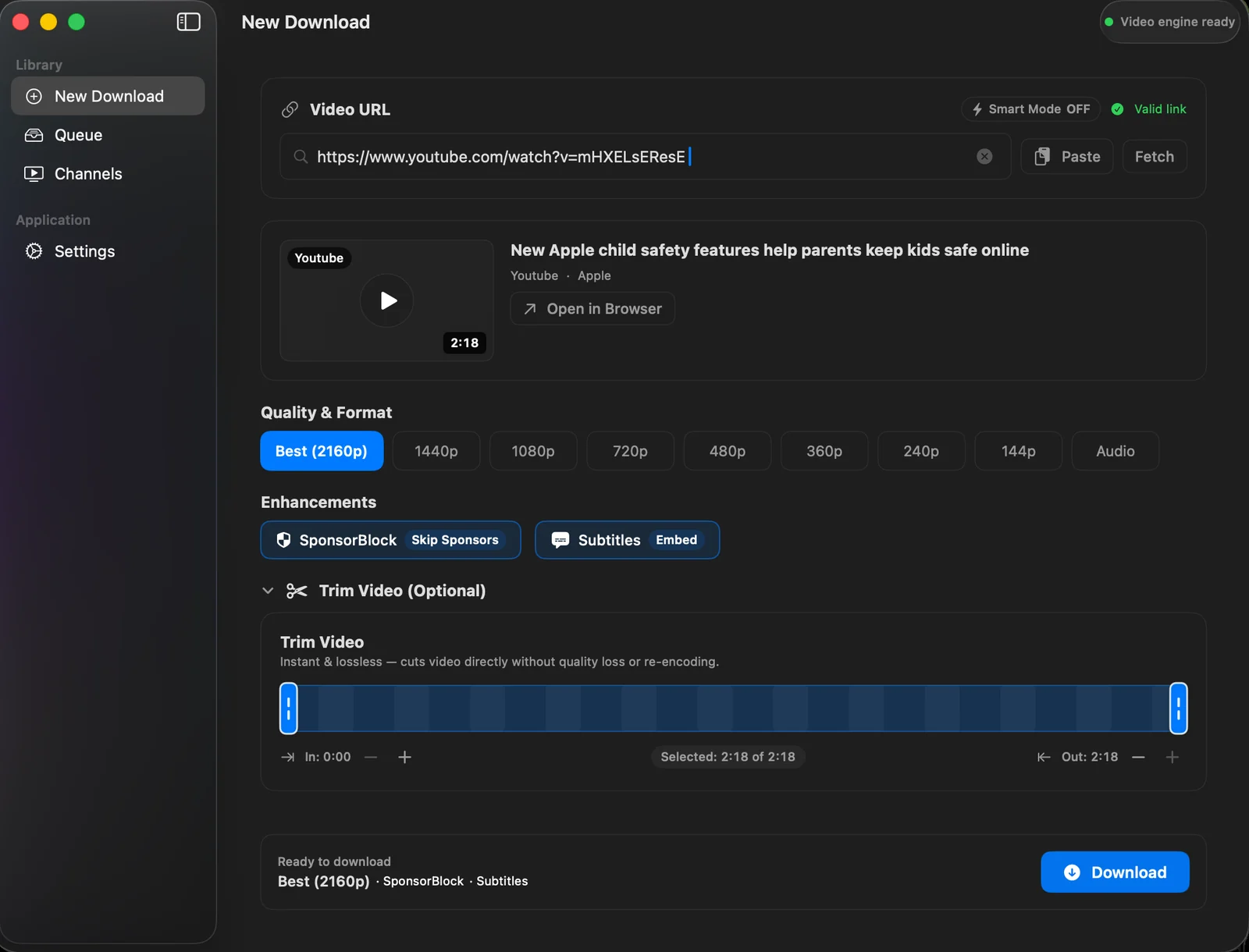
A few honest notes:
- “1,000+ sites” is each vendor’s claim. I didn’t test them, and a site that works today can stop working after the site changes. Use the free tier or trial before you pay.
- They share one limit. None of these can save DRM-protected video, and PullTube’s and VidNeat’s own pages say so.
- Trimming is separate. If you only need part of a long video, check whether the app lets you set the range before it downloads. See our guide to clipping YouTube videos on a Mac.
- VidNeat, limits plainly: it needs macOS 14, works only on sites its bundled extraction supports, can break when a site changes until an update ships, and can’t save DRM-protected video.
- VidNeat’s integration options are on its browser integration page, and the
vidneat://link scheme is covered in automating video downloads with Shortcuts.
Method 4: Record your screen
When a video plays but nothing else works, a screen recording always captures what you see. Per Apple’s instructions:
- Press Shift-Command-5 to open the Screenshot toolbar.
- Click Record Selected Portion and drag the borders around the video player.
- Click Record, then play the video.
- Stop from the menu bar, or press Command-Control-Esc.
The drawbacks are real. It happens at playback speed, it’s re-encoded from your screen, anything on screen (ads, captions, the pointer) ends up in the file, and sound capture depends on your macOS version. Our clip guide has the details. Recording a video doesn’t give you the right to keep it, either.
When none of these work
- The video is DRM-protected. This is deliberate. Streaming services use it to prevent copies. No legitimate downloader removes it, and this guide doesn’t help with it.
- The site needs you to be signed in. Whether a downloader can cope with that varies by app, so check its documentation.
- The link expires. A direct file address can be temporary. If it stops working, re-copy it from the Network tab and use it straight away.
Common questions
Why is there no “Save video as” option?
A site that uses HLS delivers its video as a playlist plus a series of segments rather than as one file, so there’s no single file for the browser to save. Apple’s HLS documentation describes this delivery method, and it’s what my test stream used.
Can I just download the .m3u8 file?
You can, but it’s only a text list of segments. You need a tool such as FFmpeg to fetch the segments and join them into a video.
How do I download an embedded video in Safari?
Turn on Safari’s developer features, open Web Inspector (Option-Command-I), select Network before the video plays, and filter for mp4 or m3u8. A .mp4 URL can be opened and saved; a .m3u8 needs FFmpeg or a downloader. Our Inspect Element guide covers every case.
Can I download a video from a website on a Mac without installing anything?
Sometimes. If the site offers a download, or Web Inspector shows a single .mp4 file, Safari and the built-in curl are enough. Screen recording with Shift-Command-5 is also built in.
Is it legal?
It depends on the video, the site’s terms and where you are. I’m not a lawyer, so this guide doesn’t give legal advice. The safe route is to save only what you own or are explicitly allowed to keep.
Will these work on Safari, Chrome and Firefox?
Method 2 here uses Safari, and the other browsers have their own developer tools. Extension support differs by app, as the table above shows.
Summary
- Start with the site’s own option. It’s the simplest, and it’s what the owner intends.
- Use Web Inspector to find a direct
.mp4file or an.m3u8playlist.curlfetches a file, and FFmpeg joins a playlist. - A downloader app is the least effort. Test the free tier or trial first.
- Screen recording is the fallback, with the quality costs described above.
- DRM-protected video is off limits. Save only what you have the right to keep.
Related guides
Download an M3U8 video to MP4
What's inside an .m3u8, and three tested ways to turn one into an MP4.
Download a blob:https video
Why a blob: address can't be fetched, and how to find the stream behind it.
How to Clip YouTube Videos on Mac: 3 Ways to Get a Link or an MP4 File
YouTube's Clip button only makes a link. Here's how to clip a YouTube video on a Mac as a link or as an MP4 file you can edit, and the limits of each method.
How to Trim or Cut a Video with FFmpeg Without Re-encoding: Exact Commands, Tested
FFmpeg commands to trim a video from one time to another, cut out a middle section, or crop, without re-encoding where possible. Measured on a Mac.
How to Download Videos with Apple Shortcuts, Raycast and Terminal on Mac
Set up a one-keystroke video download on Mac: an Apple Shortcut, Raycast Quicklink or zsh helper that sends the copied link to VidNeat via vidneat://.
Browser integration
Send a page to VidNeat from a browser extension, a bookmarklet or the vidneat:// URL scheme.
Get the clip you need. Not the entire video.
A native Mac downloader that fetches the range you mark and cuts by copying streams. Requires macOS 14.0 Sonoma or later.
VidNeat is a software tool. You are responsible for having the rights or permission to access, use, edit and export the media you work with.