
How to Save an Embedded HTML5 Video From Inspect Element (Including Canvas Players)
Inspect Element shows if an embedded video is a file, a playlist, a blob: stream or canvas frames. How to tell, and what each lets you save.
On this page
To save an embedded HTML5 video using Inspect Element, right-click the video, choose Inspect, and find the <video> tag. Then select it and type $0.currentSrc in the Console to see the address it’s really playing. If that’s an ordinary https://…/file.mp4, open the address in a new tab and save it. If it’s an .m3u8 or .mpd, use a stream tool to turn it into an MP4. If it’s a blob: address, the real source is in the Network panel instead. If the picture is drawn on a <canvas> rather than in a <video> tag, there’s no file to extract at all, only pixels.
This page shows how to tell those cases apart and what each one lets you save. I tested every case on pages I built and served from my own Mac, in a Chromium 152 browser, on 21 October 2026.
Rights first: an embedded video is still someone’s work. Save only what you own, what’s licensed for download, or what the owner has said you may keep. DRM-protected video is out of scope.
Key takeaways:
- Select the
<video>and run$0.currentSrcin the Console. It shows the address the browser is really playing, even when the HTML shows nothing. - Four results, four routes: a
.mp4saves as is, a.m3u8/.mpdneeds a stream tool, ablob:needs the Network panel, and a<canvas>can only be re-recorded. - A direct file comes out identical: from the page address, my copy had the same MD5 checksum as the original.
- Canvases drawing video from another site can’t be captured: the browser throws a
SecurityError, as the W3C spec requires. - DRM (Widevine, FairPlay) is out of scope for every method here.
How a page embeds video
The HTML <video> element can get its media in two ways:
<!-- 1. A src attribute -->
<video controls src="/media/talk.mp4"></video>

<!-- 2. One or more <source> children; the browser picks the first it can play -->
<video controls>
  <source src="/media/talk.m3u8" type="application/x-mpegURL">
  <source src="/media/talk.mp4" type="video/mp4">
</video>
The element’s currentSrc property reports which address it actually chose, so check that rather than the HTML. A JavaScript player can also replace both with a Media Source Extensions stream, and then currentSrc reports a blob: address. Some players skip the visible <video> and paint frames onto a <canvas> instead.
Step by step: find the real source with Inspect
- Right-click the video and choose Inspect. If you land on an overlay
<div>, look nearby in the Elements panel for<video>, or press Command-F in the panel and search forvideo. - Click the
<video>element to select it. - Open the Console (Esc toggles a console drawer under Elements) and type:
$0.currentSrcChrome’s Console Utilities reference says $0 “returns the most recently selected element”, so this reads the address from the element you just clicked.
- Read the result against this table:
currentSrc looks like |
What you have | What you can save |
|---|---|---|
https://…/talk.mp4 (or .webm, .mov) |
A progressive file | The file itself, unchanged |
https://…/index.m3u8 |
HLS playlist | All segments, joined into an MP4 |
https://…/manifest.mpd |
MPEG-DASH manifest | Video and audio tracks, muxed into an MP4 |
blob:https://… |
A Media Source Extensions stream | The stream it was built from, found in the Network panel |
Empty, and there’s a <canvas> instead |
Frames painted by script | Only a re-recording, and sometimes not even that |
- Inspect the <video>
$0.currentSrc - .mp4 address?Save the file directly
- .m3u8 or .mpd?Use a stream tool to make an MP4
- blob: address?Find the manifest in Network
- <canvas> only?No file exists; re-record at best
Case 1: a direct .mp4
Copy the address, paste it into a new tab, and use the browser’s save command. Or download it in Terminal:
curl -L -o talk.mp4 "https://example.com/media/talk.mp4"If that returns an error page, the server probably wants the browser’s cookies or referrer. Note the time, too: some addresses are signed and expire.
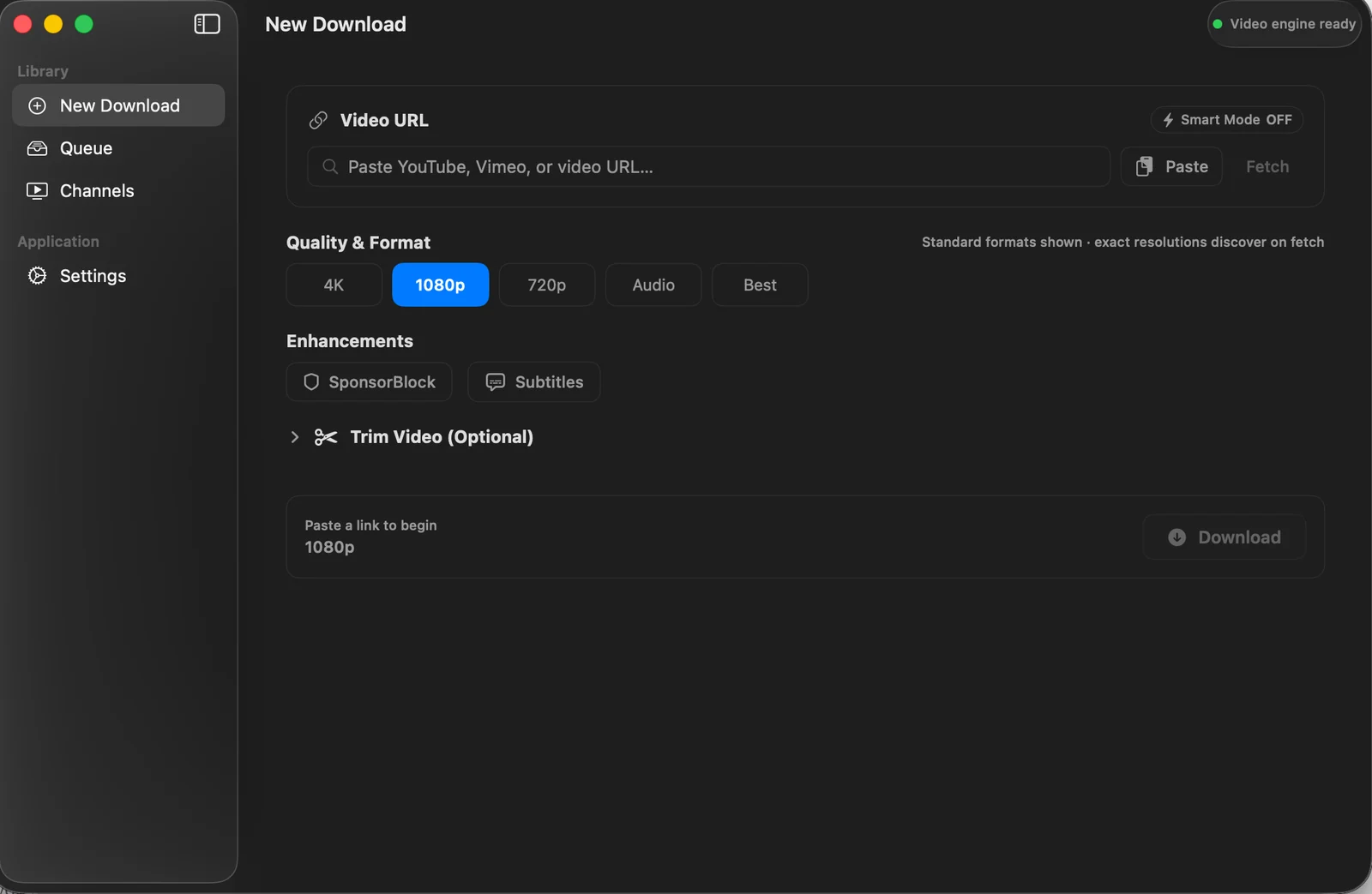
With VidNeat (our app): you can also paste the page address, and its engine finds the <video> file itself. On my test page with <video src="/plain.mp4">, the downloaded file had the same MD5 checksum as the original (c414a0eb…). It was byte-for-byte the same file. A plain <video src> declares no resolution, so the quality must be Best. Paste the page address with Smart Mode off and let inspection select it, because a height-capped default like 1080p fails with “Requested format is not available”.
Case 2: a .m3u8 or .mpd in <source>
That’s a streaming manifest, and saving the address gets you a text or XML file, not video. The tool needs to fetch the segments and join them:
- HLS (
.m3u8): download an M3U8 to MP4, with FFmpeg or VidNeat. - DASH (
.mpd): convert an MPD to MP4. Note that Homebrew’s FFmpeg can’t read MPDs.
Because the manifest is in the HTML here, either address works in VidNeat. My test page with <source src="/hls/master.m3u8"> downloaded the full 60-second 1080p stream from the page URL alone, and the playlist URL on its own gave the same file. The companion extension’s right-click menu sends the video’s own address when it’s an http(s) one, and the page URL otherwise.
Case 3: a blob: address
blob: means the page built the stream in JavaScript. On my Media Source Extensions test page, currentSrc was blob:http://127.0.0.1:8765/f06e95da-…, and not even the page itself could fetch() it back. The blob: video page explains why, from the Fetch Standard, and shows how to find the real manifest in the Network panel.
Case 4: canvas players
A <canvas> is a bitmap. A player can draw each video frame onto it with drawImage(), for effects, overlays, or to make copying harder. Inspect Element then shows a <canvas> and perhaps a hidden <video> it’s drawing from. The canvas holds pixels, not a video file, so there’s nothing in it to extract losslessly.
The only way to get video out of a canvas is to record its pixels as they change. The W3C Media Capture from DOM Elements spec gives canvases a captureStream() method for this, which “produces a real-time video capture of the surface of the canvas”. That recording is re-encoded, happens in real time, and is limited to what was drawn. It’s also blocked whenever the canvas has drawn video from another site, which is the usual case.
I tested both situations on one page:
| Check | Canvas drawing a same-origin video | Canvas drawing a video from another origin (no CORS) |
|---|---|---|
canvas.toDataURL() |
Worked | SecurityError: “Tainted canvases may not be exported.” |
getImageData() |
Worked | SecurityError |
canvas.captureStream() |
Worked; a MediaRecorder on it started recording |
SecurityError: “Canvas is not origin-clean.” |
That matches the spec: “This method throws a SecurityError exception if the canvas is not origin-clean.” So the practical move with a canvas player is to look for the <video> element or the network requests feeding it, and handle those as in cases 1 to 3. If that’s not possible, screen recording is the remaining option, with the usual quality cost.
What Inspect Element can’t get around
- DRM. If the page uses Encrypted Media Extensions (you may see a licence request in Network, or “Widevine” or “FairPlay” mentioned), the video can’t be saved by these methods, and this page doesn’t try. VidNeat reports DRM-protected video as a permanent failure.
- Expiring addresses. Signed URLs stop working after a short time. Copy and use them at once.
- VidNeat, limits plainly: it can’t send custom headers, can’t read a
blob:or canvas, and reports DRM as a permanent failure. - Login-only media. VidNeat can read your browser’s session cookies, locally, from Settings, for sites you’re signed in to. A server that checks other request headers can still refuse it. FFmpeg’s
-refererand-headersoptions are the fallback.
Common questions
Why is “Save video as” missing or greyed out?
Usually because the video is a stream (case 2 or 3), so there’s no single file for the browser to save. Inspect it to find out which.
The <video> has no src and no <source>. Where’s the video?
A script attached it later, most often as a MediaSource. $0.currentSrc shows the live value even when the HTML shows nothing.
Will the saved file be lower quality?
Not in cases 1 to 3. They copy the original streams. Only re-recording, from a canvas or the screen, re-encodes.
How do I download a video from Inspect Element?
Right-click the video, choose Inspect, click the <video> element and type $0.currentSrc in the Console. If the result is a .mp4 address, open it in a new tab and save it; otherwise follow the table above.
Can I download a video that plays in a canvas?
Not as a file. A canvas holds pixels, so the only option is a real-time re-recording, and the browser blocks even that when the video comes from another site without permission.
Does this work in Safari?
The same steps work in Safari’s Web Inspector once Show features for web developers is turned on in Settings > Advanced. Our website download guide has the details.
Summary
- Inspect the
<video>, select it, and run$0.currentSrc. That’s the address the browser is really playing. - A direct file can be saved as it is. VidNeat produced a byte-identical copy from the page address in my test.
- Manifests need a stream tool. blob: addresses need the Network panel.
- A canvas holds pixels, not a file. If it draws video from another site, the browser blocks capture with a
SecurityError, as the spec requires. - DRM-protected video is out of scope.
Related reading
How to Download a blob:https Video (and Why You Can't Save It Directly)
A blob: address is memory inside one browser tab, not a file. What the specs say, what my tests showed, and how to find the real stream to save.
How to Download an M3U8 Video to MP4 on Mac (and From Chrome)
An .m3u8 is a text playlist, not a video. What's inside one, why a browser save fails, and three tested ways to turn it into one MP4 on a Mac.
How to Download an Embedded Webinar Recording (M3U8) for Your Archive
Embedded webinar replays usually stream as HLS. Try the platform's download first, then the .m3u8, with sign-ins handled and only the part you need.
Download a video from a website on Mac
The site's own option, Web Inspector, a downloader app, or screen recording.
Get the clip you need. Not the entire video.
A native Mac downloader that fetches the range you mark and cuts by copying streams. Requires macOS 14.0 Sonoma or later.
VidNeat is a software tool. You are responsible for having the rights or permission to access, use, edit and export the media you work with.